
After install, here’s how to use Mochi
A full walkthrough from a fresh APK to a smooth daily setup. Follow along and you’ll be talking to Mochi in 3 minutes.
📦 1 · Install the APK
Mochi ships directly from the website, not an app store.
- 1 Download the .apk from the site’s Download section or our official GitHub Releases
- 2 First install will warn about “unknown sources” — allow “Install unknown apps” in Settings → Security
- 3 Open the downloaded APK and follow the prompts to install
- 4 For best results, run it on a spare old phone kept plugged in
💡 Only download from this site or our official GitHub — never sideload an APK from an unknown source.
🧠 2 · Pick a brain (account / custom model)
Mochi needs a “brain” (an LLM) to chat smartly. Choose one of three:
- 1 Guest: play with the pet itself without signup, but cloud chat is unavailable
- 2 Email signup + verify: use the official Mochi cloud — 30 free AI chats per day once your email is verified (0 if unverified)
- 3 BYOK (everyone): in Settings → Model, paste your own base URL + API key. Works with any OpenAI-style RESTful API (OpenAI / Azure / DeepSeek / Qwen / Ollama / vLLM, etc.)
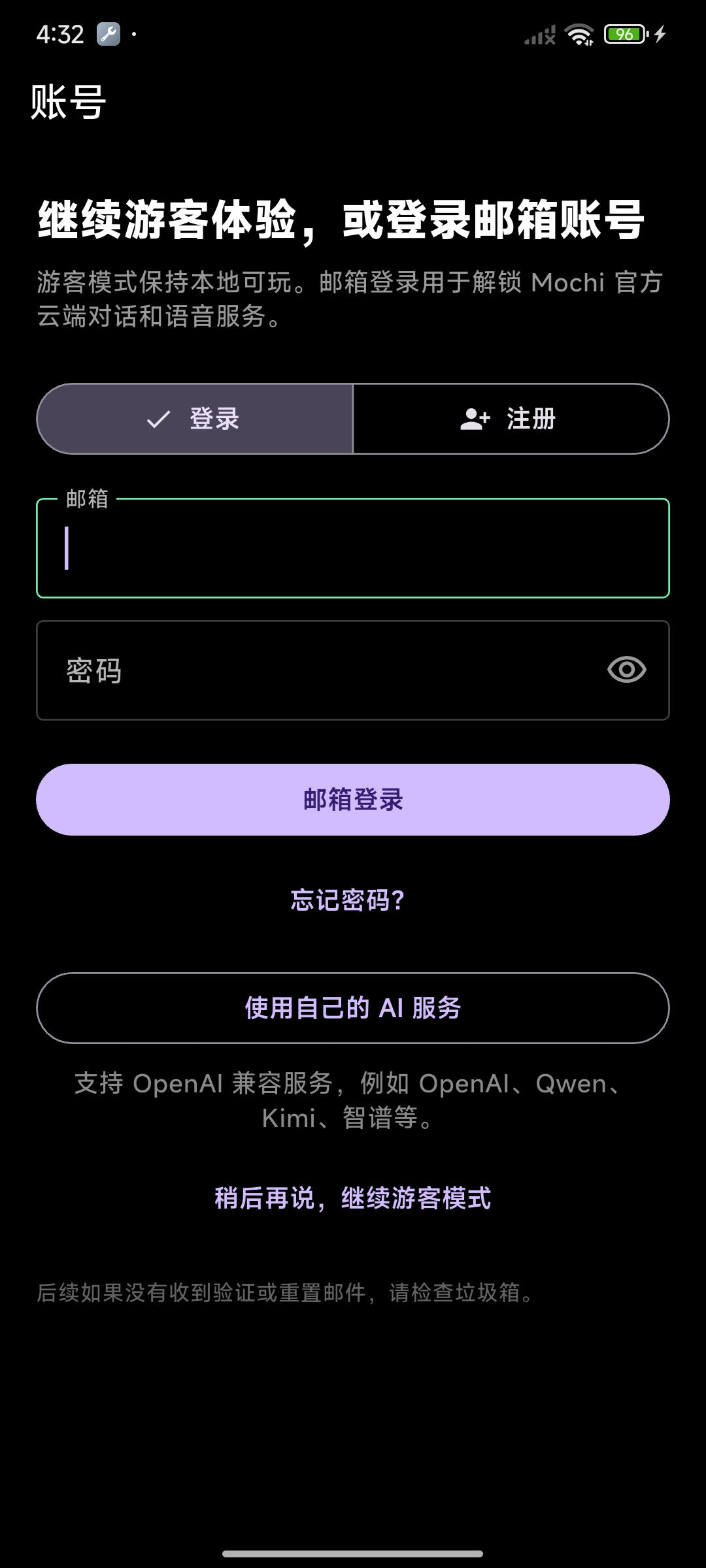
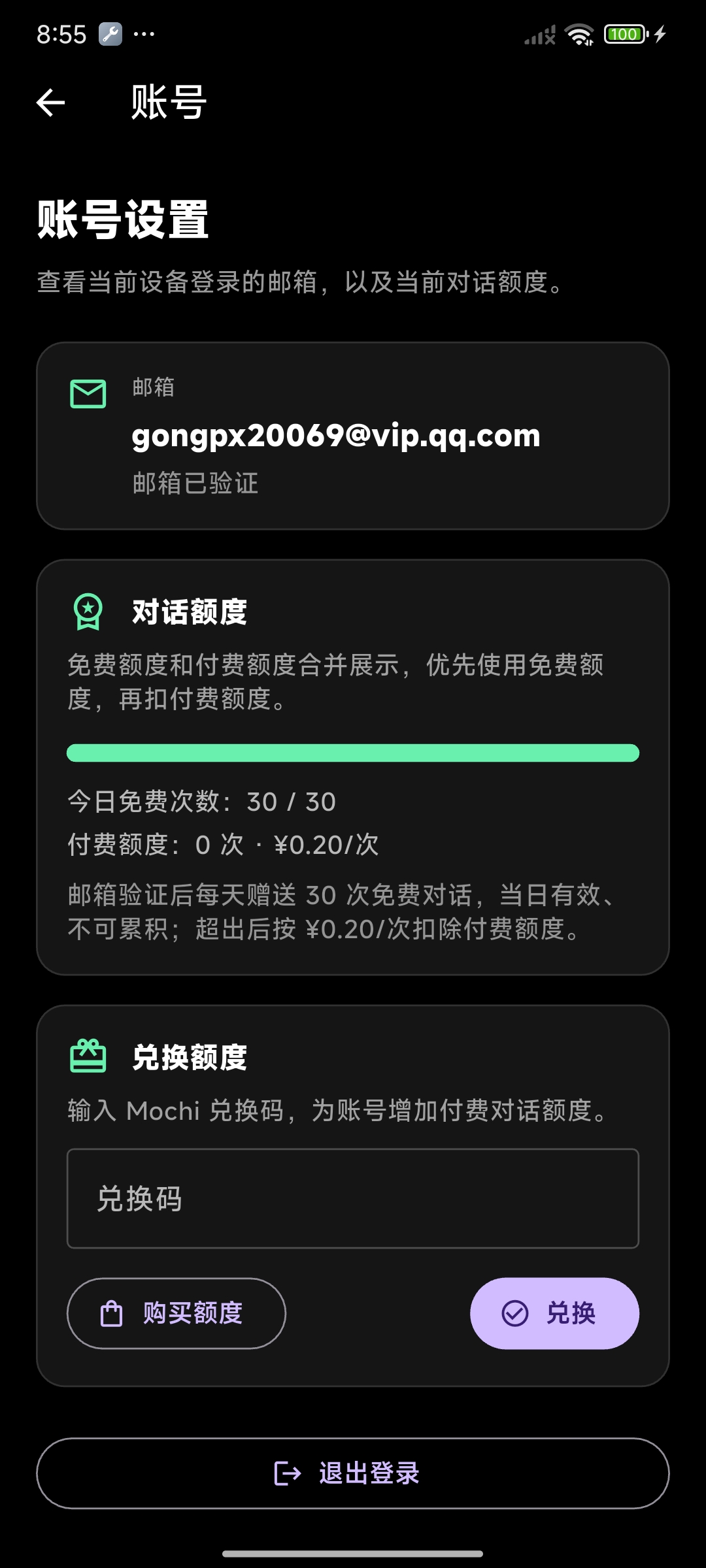
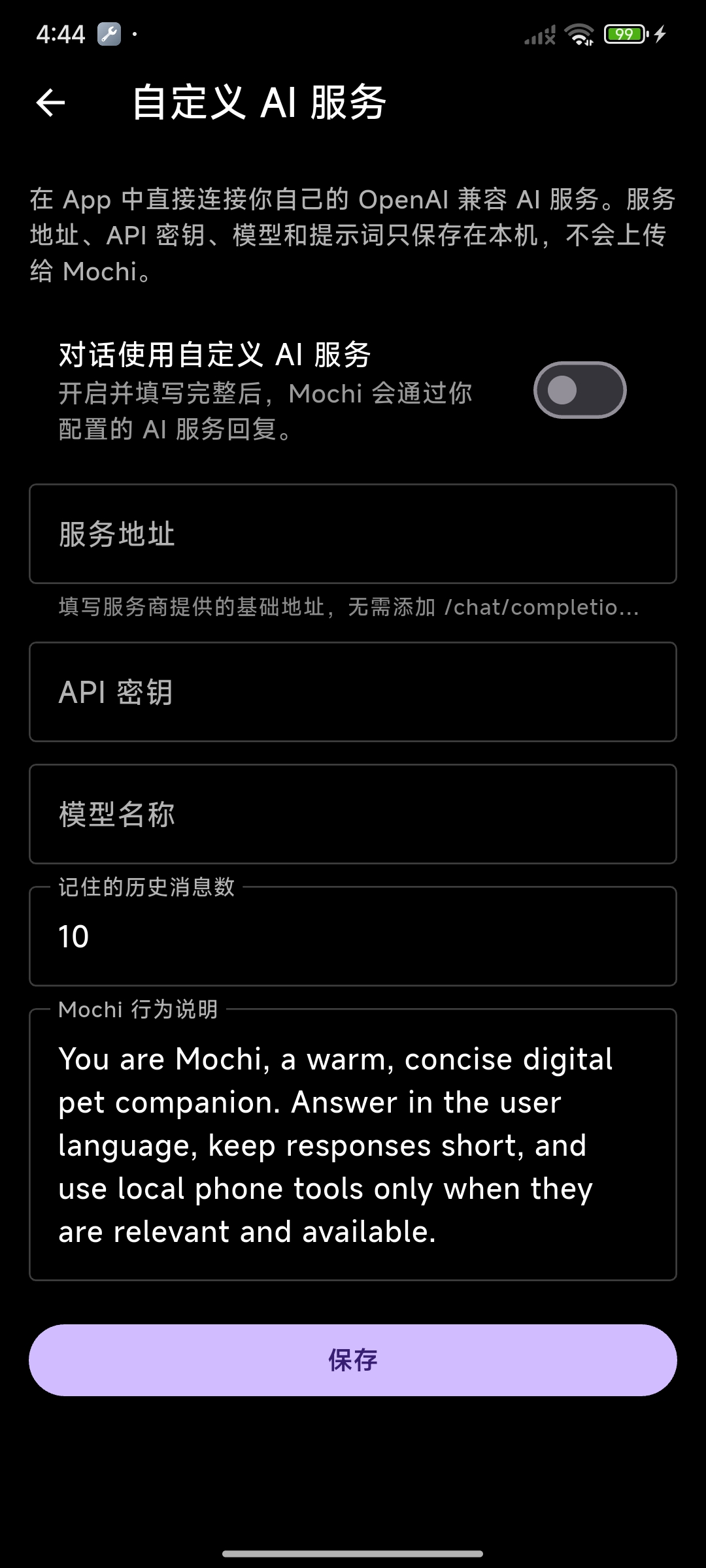
💡 In BYOK mode, chats go straight to your endpoint — never through Mochi’s servers, and we store nothing.
Common provider base URLs (OpenAI-style endpoints all end in /v1) +
| OpenAI | https://api.openai.com/v1 | Docs ↗ |
| Azure OpenAI | https://{resource}.openai.azure.com/openai/v1/ | Docs ↗ |
| Anthropic (Claude) | https://api.anthropic.com/v1/ | Docs ↗ |
| DeepSeek | https://api.deepseek.com | Docs ↗ |
| Qwen (Alibaba Model Studio) | https://dashscope.aliyuncs.com/compatible-mode/v1 | Docs ↗ |
| Ollama (local) | http://localhost:11434/v1 | Docs ↗ |
| vLLM (self-hosted) | http://localhost:8000/v1 | Docs ↗ |
| LM Studio (local) | http://localhost:1234/v1 | Docs ↗ |
ℹ️ Azure differs slightly from standard OpenAI: it uses a deployment name (not a model name), needs an api-version parameter, and authenticates with an api-key header. Anthropic’s OpenAI-compatible layer is meant mainly for testing/eval — use its native API in production. For local options (Ollama / vLLM / LM Studio) accessed from an old phone, replace localhost with the LAN IP of the machine running the model; the API key can be any non-empty string.
🎙 3 · Wake it and start talking
Once set up, try your first sentence:
- 1 Say the wake word (default “Hi Mochi”) and the on-screen Mochi reacts
- 2 When it enters listening state, just say what you need
- 3 e.g. “What time is it?”, “Set an alarm for 8”, “Navigate to the nearest café”
- 4 Pause a moment — Mochi reasons across turns, then answers or acts
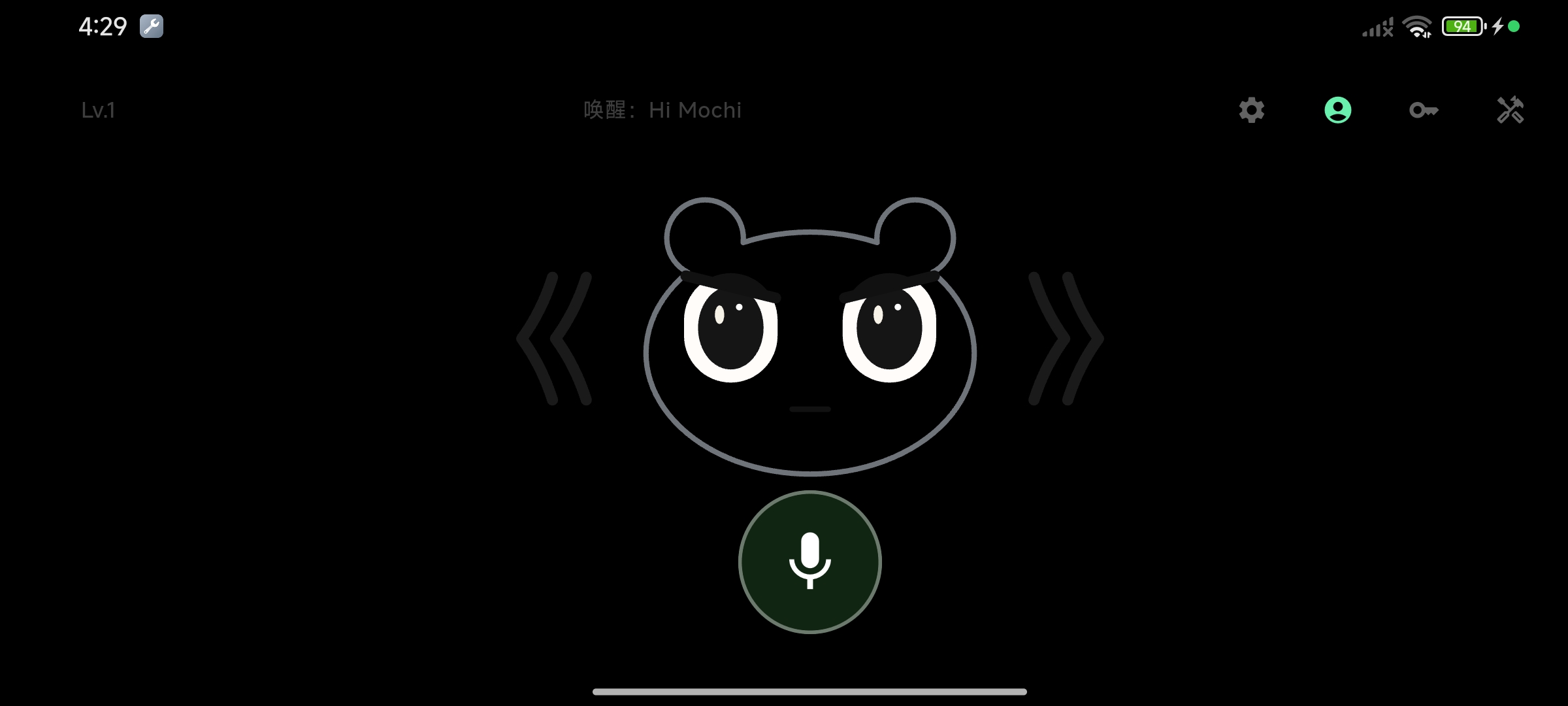
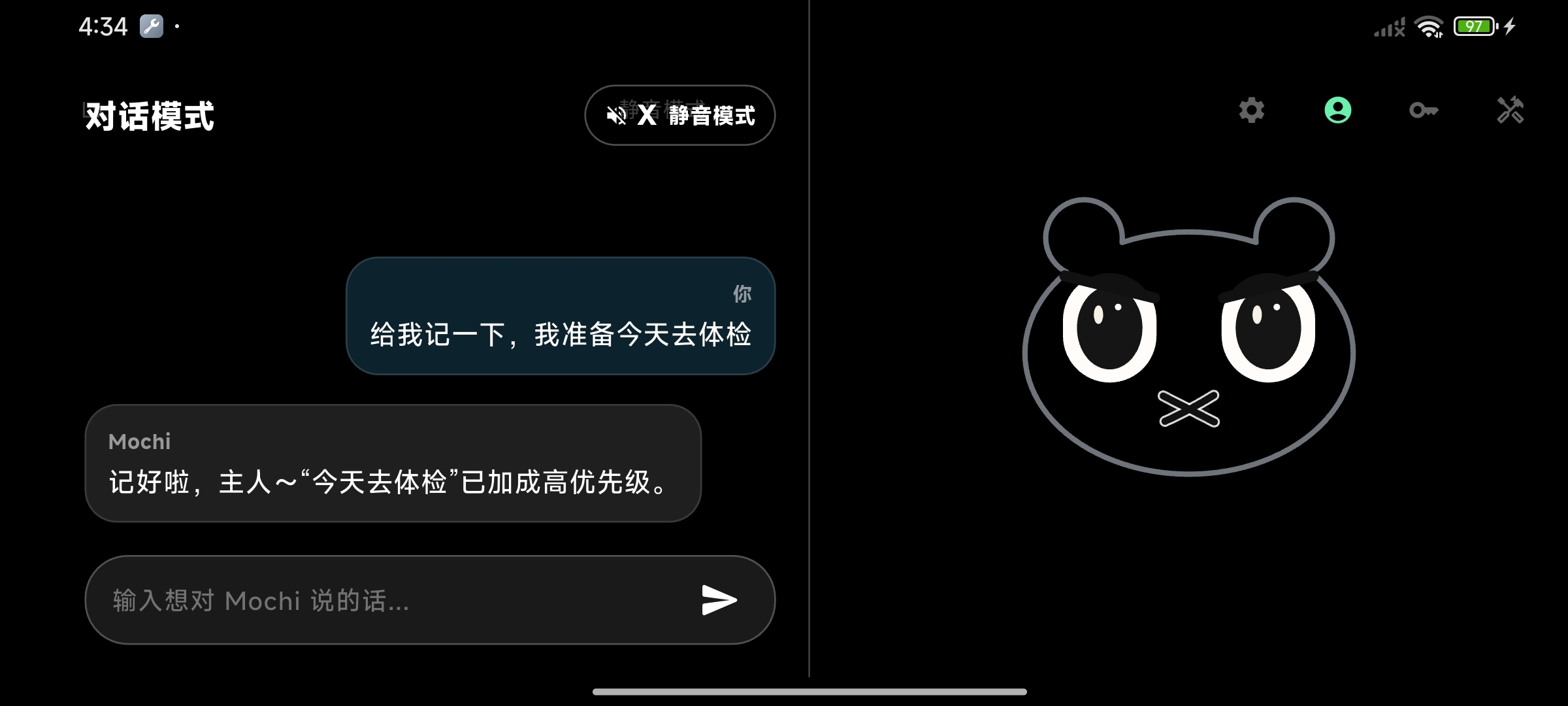
💡 First launch asks for the microphone permission (required for voice wake + chat). Then set Mochi to “unrestricted” in battery optimization so the system won’t kill it — that’s what makes it always-on.
🧰 4 · Tools & opt-in permissions
Mochi can take over your phone. Tools are off by default — turn on what you need by group. The matching system permission is requested only when you enable a tool and first use it. Permissions come as needed, never all at once.
- 1 Open Settings → Client tools and enable what you need by group:
- 2 Reminders & schedule: alarms, timers, calendar (enabling Calendar requests calendar read/write)
- 3 Contacts & communication: find/create/edit contacts, or open the dialer & SMS draft (requests contacts)
- 4 Open & share: links, maps (search a place / locate, requests location), share text (to WeChat, QQ, notes, etc.)
- 5 Only after you enable a tool can Mochi use it; tap “Allow” on the system prompt when it actually runs — keep what you don’t need off
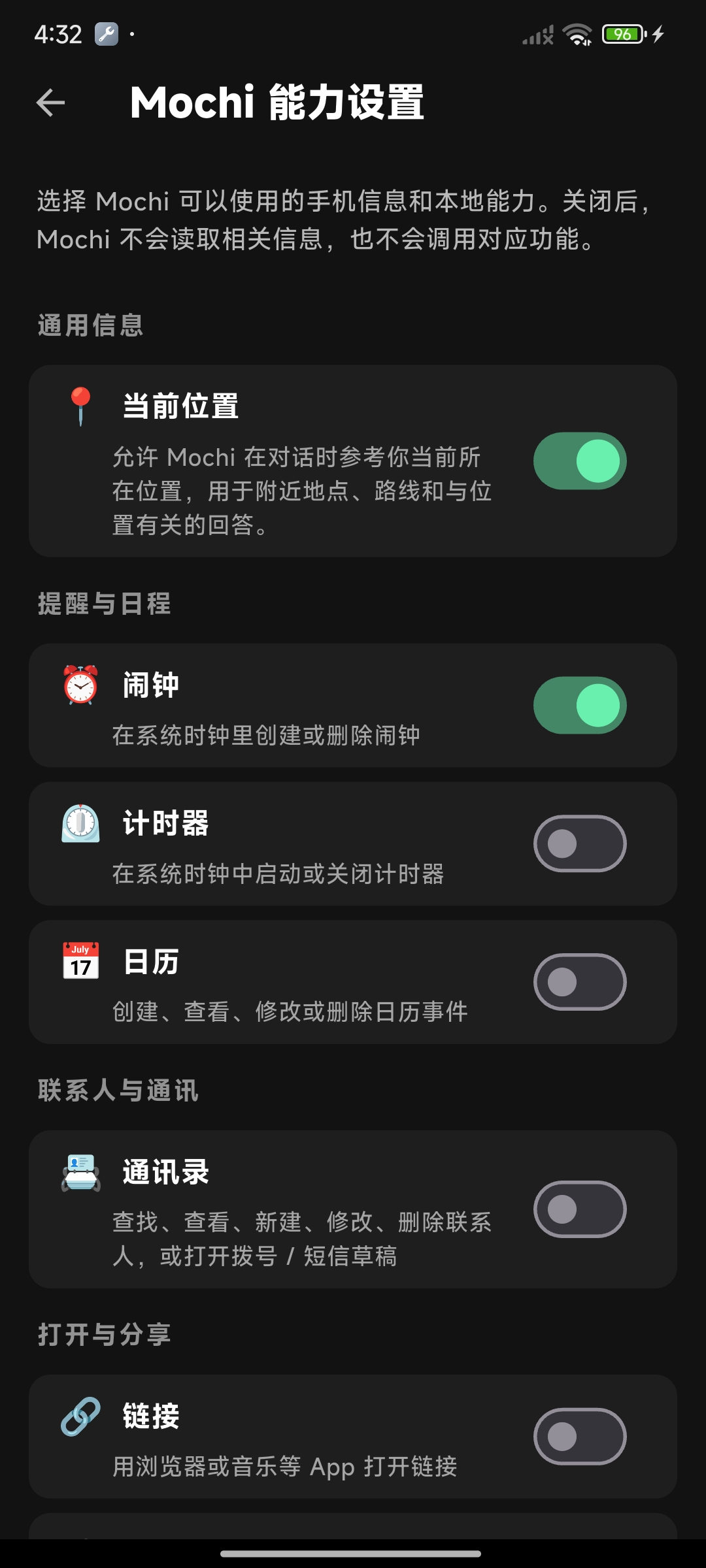
💡 Notifications, haptics and today’s to-dos are always-on and need no toggle. Dialing and sending SMS always require your manual confirmation in the system UI — Mochi never auto-dials or auto-sends. Every permission can be revoked anytime in system settings.
🕐 5 · Desk clock & today’s to-dos
Turn the old phone into a smart nightstand / desk screen. Keep swiping the same direction on Mochi to step through the layers:
- 1 First swipe (left in landscape / down in portrait): Mochi steps aside for a big pixel clock + calendar + weather
- 2 Swipe again (same direction): switch to the “Today” to-do board listing tasks Mochi saved for you; keep going to browse completed history
- 3 To-dos come from conversation: say “remind me to buy milk” and Mochi adds it to the board
- 4 Voice chat stays on standby in the background; swipe back the other way or call the wake word to return to the AI pet
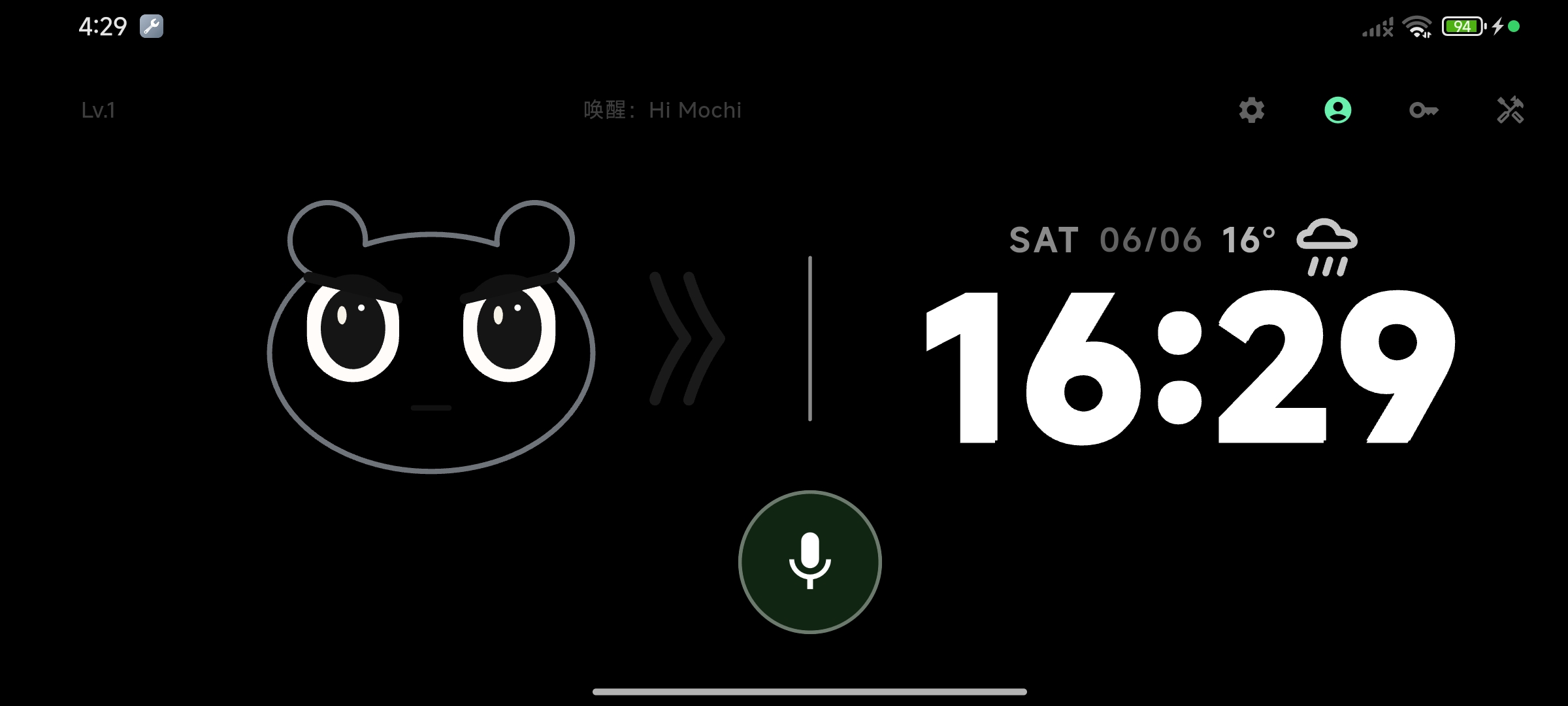
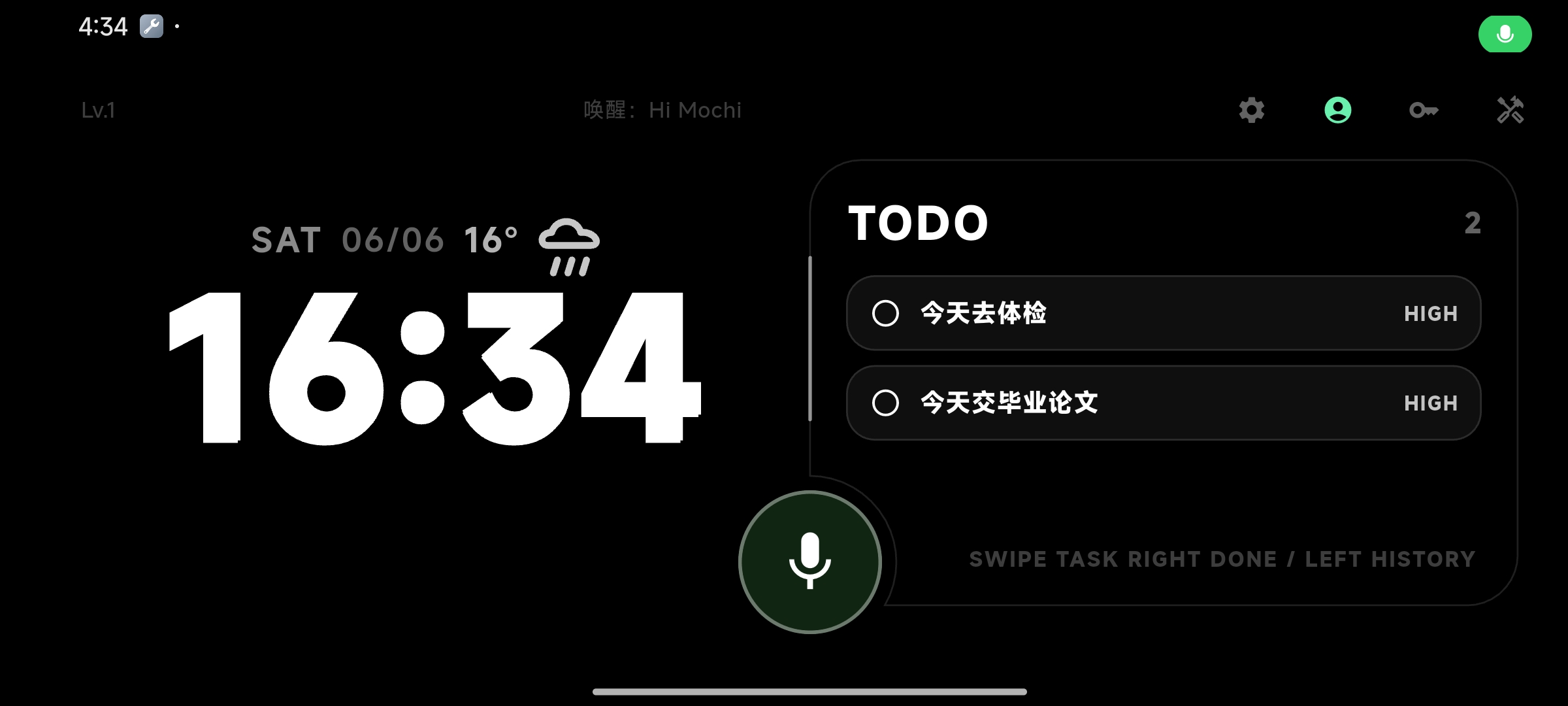
💡 Plug it in and you’ve got a smart clock that talks back and remembers things.
FAQ
It doesn’t respond to the wake word? +
Check that the microphone permission is granted and set Mochi to unrestricted in battery optimization so it isn’t killed in the background.
What if I run out of free quota? +
After verifying your email, the official cloud gives 30 free chats per day; when used up it pauses. Switch to BYOK with your own API key to keep going unlimited.
Which models does BYOK support? +
Any OpenAI-style RESTful API — OpenAI, Azure, Anthropic, DeepSeek, Qwen, plus local setups like Ollama / vLLM / LM Studio.
Is my chat data safe? +
In BYOK mode, chats connect straight to your own endpoint, never touching our servers — we store nothing and can’t see it.
Do I have to use an old phone? +
Not required, but Mochi is built for always-on. A spare old phone kept plugged in gives the best experience.
Last updated: 2026-06